
October 13, 2026
Not all PDFs are created equal. Some arrive as clean, digitally-born files exported straight from an ERP or accounting system. Others show up as scanned images of paper documents, with no machine-readable text underneath. That difference matters more than you might think, because it directly shapes how accurately and efficiently your documents get processed.
The new PDF Processing mode in ABBYY Vantage gives you explicit control over how the platform handles each type. You still keep the smart, automated option that lets Vantage decide when optical character recognition (OCR) is necessary, but now you can also lock in a specific method when your workflow demands it. Here is what that means for you.
Key takeaways
Jump to:
How to Integrate Generative AI into Your Document Processing Pipeline (Demo)
Where to configure PDF Processing mode
Before we get to the new setting, it helps to understand the two kinds of PDFs you are likely working with.
The tricky part is the middle ground. Some PDFs carry a text layer that looks fine on the surface but is actually low-quality or corrupt. When that happens, relying on the embedded text can introduce recognition errors that degrade your extraction results. Being able to choose how Vantage treats each file is what makes the difference between predictable results and unexpected surprises.
PDF Processing mode gives you three options. Each one fits a different situation.
The Default mode is the standard, intelligent Vantage behavior. It uses the embedded PDF text layer when one is available and supplements it with OCR as needed.
Use Text Layer Only extracts text exclusively from the embedded PDF text layer. If a file has no text layer, Vantage still falls back to OCR automatically, so nothing gets skipped.
Use OCR Only ignores any embedded text layer and performs full OCR on every page.
Quick takeaway: Stick with Default for everyday flexibility. Switch to Use Text Layer Only or Use OCR Only when you need a single, predictable processing path every time.
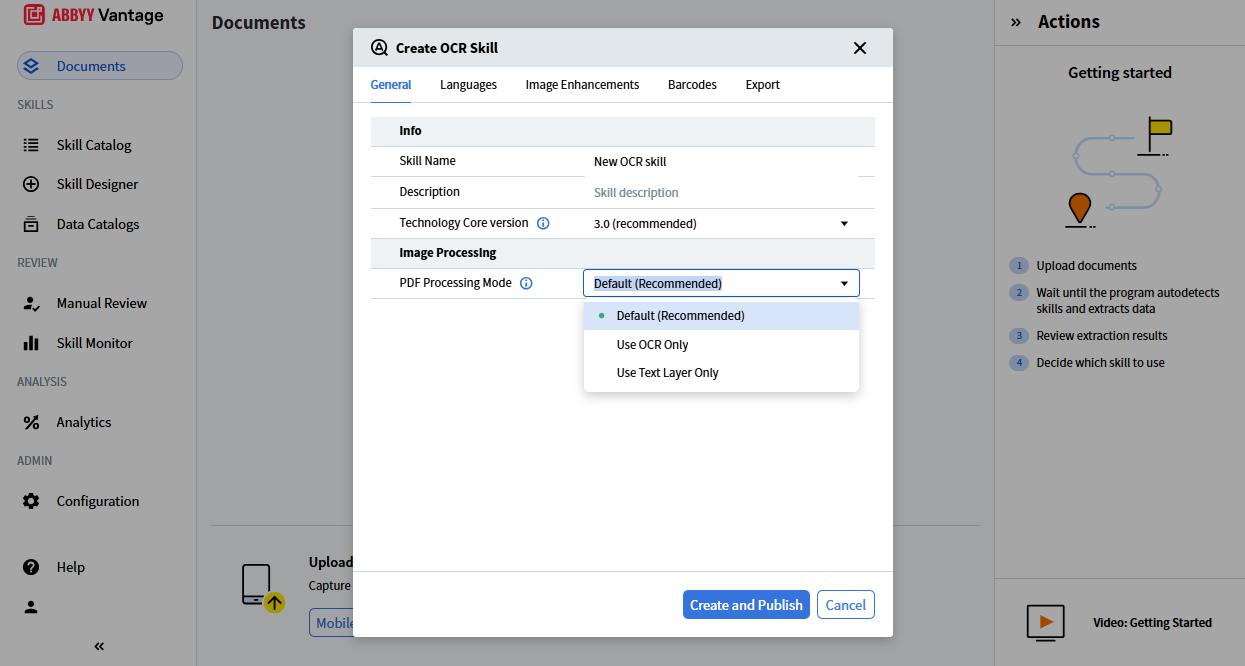
You will find the setting in two places inside the Skill Designer:
One requirement to note: PDF Processing mode is supported for skills using Technology Core 3. It is not available for earlier Technology Core versions, so make sure your skill is on the right core before you configure it.
PDF Processing mode brings a simple but meaningful improvement: you decide how Vantage reads your PDFs. Keep the intelligent Default for everyday mixed workloads, or take explicit control with Use Text Layer Only and Use OCR Only when reproducibility, auditability, or legacy data quality are on the line. It is a small setting with a real impact on accuracy, speed, and confidence in your results.
Discover the full potential of the ABBYY Document AI platform and explore all of its robust capabilities by visiting abbyy.com/ai-document-processing/.
PDF Processing mode is a setting that lets you control how Vantage extracts text from PDF documents. You can let Vantage decide automatically with the Default mode, extract only from the embedded text layer with Use Text Layer Only, or run full OCR on every page with Use OCR Only. It gives you predictable, configurable processing across different types of PDFs.
A digitally-born PDF contains an embedded text layer, which is searchable text written directly into the file by the software that created it. A scanned PDF is an image of a page with no text layer, so it requires OCR to extract the text. Knowing which type you have helps you choose the most accurate and efficient processing method.
Choose Use OCR Only when the embedded text layer in your PDFs is unreliable or corrupt. This mode ignores the flawed text layer and extracts clean text directly from the page image, improving field extraction accuracy.
You configure PDF Processing mode in the Vantage Skill Designer, either in the OCR Skill settings or the OCR activity settings within a Process skill, on the General tab under Image Processing. The feature requires skills using Technology Core 3 ,and is not available for earlier Technology Core versions.

Slavena Hristova
Director of Product Marketing, Document AI at ABBYY
Slavena Hristova is a seasoned product marketing leader specializing in AI-powered intelligent document processing, OCR, and business process automation. As Director of Product Marketing at ABBYY, she drives the global strategy for the Document AI product line, shaping its market positioning, go-to-market execution, and customer adoption.
With deep expertise in product marketing and management, Slavena bridges the gap between technology and business needs, enabling organizations to harness AI-driven automation for smarter document workflows. Passionate about innovation and the evolving role of AI in enterprise automation, she brings a strategic and results-driven approach to transforming how businesses process and extract value from their data.
Follow Slavena on LinkedIn.