Editorial note: FineReader PDF Mobile for Android, Business Card Reader for Android, and Text Grabber for Android & iOS have been discontinued since September 2023. You can learn more about that here.
In 2008, we launched the first Business Card Reader, which ran on the then-popular Symbian operating system. Even so, not much has changed – paper business cards are still widely used to exchange contact information. To make your work with business cards and contacts easier, learn more about ABBYY Business Card Reader (BCR) and what it can do.
Do I really need this app now?
Business Card Reader is a tool for scanning business cards and managing contacts. It’s available for iOS, Android and also has a web version to use on a PC. Business Card Reader saves you the hassle of carrying around dozens of little bits of paper and typing in contacts by hand, by recognizing contact data and saving contacts to Card holder or your smartphone’s Contacts app. Captured business cards can be grouped by tags, so if you attend a conference (when that's possible again), you can make a tag for all the contacts you gained at the event. Unlike their paper counterparts, digital business cards don’t get lost, crumpled or damaged: even if you break or lose your device, the sync feature will let you restore all your contacts.
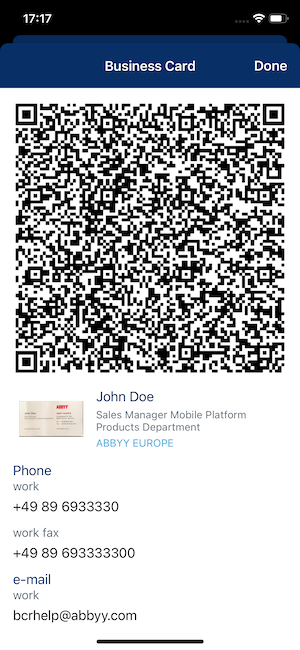
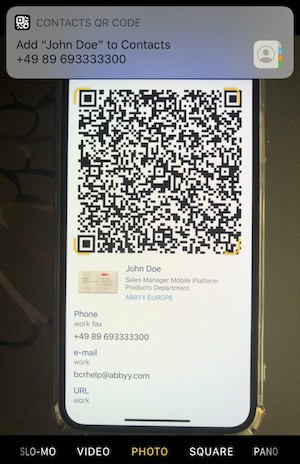
Imagine finding yourself out of business cards when talking to someone, just scan their card, and you will instantly be able to send them a short thank-you message with a digital version of your card using BCR iOS. What’s more, BCR iOS allows sharing contacts via QR-codes – contactless and safely.
If you’re new to BCR and don’t know where to start, see this manual for iOS, and this manual for Andriod. It will help you with the first setup for business card recognition.
Why does Business Card Reader have fewer languages than your other apps?
Unlike FineScanner and TextGrabber, which produce regular text for the most part, BCR has to match captured data to a variety of different fields in contact forms. It contains libraries that allow it to determine that New York is a city, Jacob is a name, and manager is a position; and does this for every supported language. While our other apps such as FineScanner support 193 languages, BCR is only available with this custom library support for 26 languages at this time.
Is adding just a couple of new languages really a problem?
Creating a language library for BCR takes hundreds of hours. Before embarking on such a task, we need to see that there is enough demand for the language to be sure that we can recoup the development costs. We generally initiate the development of a new library after we receive several thousand requests for a specific language. We are constantly monitoring requests for languages that we get through technical support and other channels.
Ok, that makes sense, let’s move on to Optical Character Recognition (OCR). What do I do if someone gives me a double-sided business card?
You can scan the flip side of the card, and all printed text will be recognized and saved as a comment to the business card, along with the date and time it was scanned.
I can’t recognize a business card! What am I doing wrong?
There are several possible causes. For starters, make sure you have the right recognition language selected. If the card is in English, but your recognition language is set to Italian, BCR will not be able to make much sense of the text on the card. If the right language is selected, make sure you have proper lighting when scanning the card and try placing the card on a different background – contrasting background colors lead to better results. For more photo tips for successful recognition, go to this page.
Does BCR have any features that will help me keep my contacts safe?
Yes, the sync feature will help you keep your contacts as long as you need them. To enable it, open BCR’s settings, select ABBYY Account and register using your email and password. This will let you access your cardholder from any iOS or Android device with ABBYY BCR installed, or in the browser on the PC – just sign in using the same email address and password.
You can also use your ABBYY Account to share business cards with other people (such as your colleagues) by having everyone sign in to the same account on multiple devices. If you don’t want to share your business cards with anyone and don’t want them transferred over the internet, disable the ABBYY Account option.
If I uninstall BCR, will all my business cards stay in the cloud?
Let’s say you decide to ditch your Android device in favor of an iPhone (or vice-versa). To access your business cards, install Business Card Reader on the new device, open the settings, select the ABBYY Account option and provide your email and password. BCR will download all the cards you had on your old device from the cloud, and you will be able to use them on the new device.
Keep in mind, however, that your cloud-based cardholder is not a backup in the classical sense – if you delete all the business cards on your device while the ABBYY Account option is enabled, they will be deleted from the cloud as well. It may be a good idea to create backups. Read about backup in iOS here, and about backups in Android here. Use it to make sure you don’t accidentally delete something important.
That’s a good start, but are there any options other than cloud sync and device backups?
Yes, there are. You can export your entire cardholder to a CSV format and open in Microsoft Excel on your computer. Just go to BCR Settings and choose Export to CSV option. You can also save individual business cards by sending them to someone in an email or an SMS.
BCR also supports exporting contacts to Salesforce CRM. To enable it, go to Settings and tap Salesforce. Login to your Salesforce account. Now you can share any contact to Salesforce.
By the way, recently we made a couple of important updates in Business Card Reader and FineScanner. Check it out here.