
Back to ABBYY Blog
Calls From Mac, 60 FPS Matters, and Productivity App
December 24, 2018
You’re working on your Mac, and your iPhone is ringing somewhere on the sofa. Luckily, no need to run for iPhone! Use your MacBook! Also we’ll make calls from Android tablet, get more productive, and check 60 FPS in FineScanner.
iOS Tip: Making and Receiving Phone Calls on Your Mac
There’s nothing unusual about using Skype or FaceTime on a MacBook. But how about making and answering regular phone calls from your laptop?
Now we’re going to show you how you can answer a phone call without running about looking for your frantically vibrating iPhone.
The feature in question is part of Apple’s Continuity concept, designed to enable users to switch seamlessly between their devices while working on a particular task. For example, you can start working in Pages on your Mac and then continue working on the same text on your iPhone, or you can start reading a web page on your iPhone and then open Safari on your laptop and pick up exactly where you left off Safari. In the same manner, you can make and answer phone calls from your laptop. Here’s what you need:
- All of your devices must be signed in to iCloud with the same Apple ID.
- All of your devices must have FaceTime enabled.
- All of your devices must be connected to the same Wi-Fi network.
- On your iPhone, open Settings→ Phone → Calls on Other Devices → Allow Calls on Other Devices.
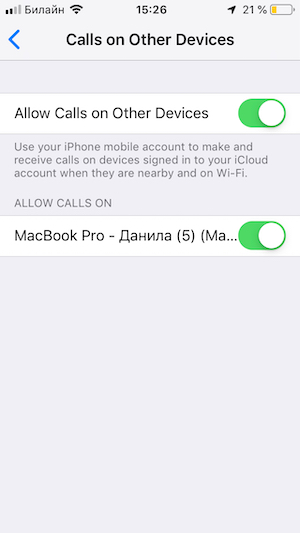
- On your Mac, open FaceTime → Preferences and select the Calls From iPhone
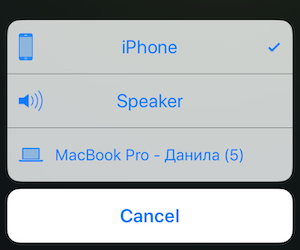
Now you can seamlessly move between your Mac and iPhone to make and receive calls. To hand off a call from your iPhone to your Mac, tap on the loudspeaker icon and select your Mac in the menu that pops up.
 You can also make calls directly from your laptop. Depending on your software modification, either hover the mouse cursor over the phone number you wish to call or click the phone icon. When you start dialling a number, the bar at the top of your iPhone screen will turn green. Tapping this bar will open the Phone app, where you can pick up the call from your Mac. To be able to make calls from an Apple computer, your Mac must be running Mac OS Yosemite or later, and your iPhone must have iOS 8.1 or higher.
Android Tip: Making and Receiving Phone Calls on Your Android Tablet
Many tablets today will have a slot for SIM cards. Alas, this does not automatically mean that you can use your tablet as a mobile phone. Your tablet may support 3G and LTE all right, but these standards only allow you to surf the web. Good old GSM is what you need to be able to make phone calls.
When buying a new tablet which you want to double as a mobile phone, open the specs page in the user manual, find a section called “Mobile Connectivity”, “Network Data”, “Mobile Network” or something to that effect, and look for GSM in the list of supported standards.
In most cases, GSM-enabled tablets will have some phone app pre-installed. Or you can easily find a dialling app on Google Play (try True Phone, for example).
ABBYY Tip: 60 FPS in FineScanner
Hooray! FineScanner now supports 60 frames per second in its camera screen! The feature has been available in our Business Card Reader for a while and now it is also supported by our mobile scanning app. See this newsletter for all the lowdown on frame rates and why they matter when it comes to image capture. In the case of FineScanner, bigger FPS means faster and more precise autocrops, sharper scans, and less blur from accidental hand shake. Click on the video below to see for yourself:
App of the Week: Move On
The hustle and bustle of modern urban living has made time a precious commodity which should be used sparingly. If you’re looking for a time management tool, may we suggest Move On – Pomodoro Timer.
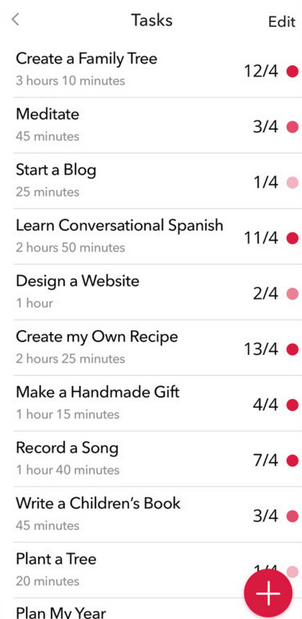
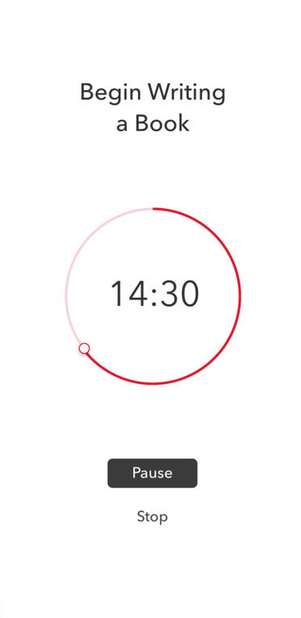
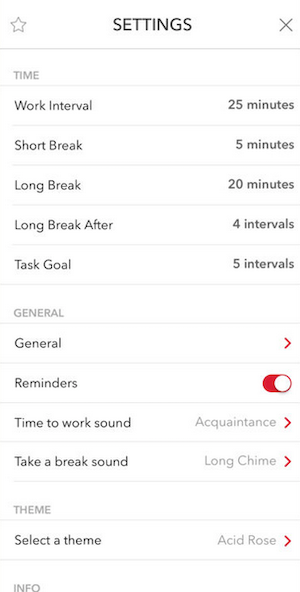
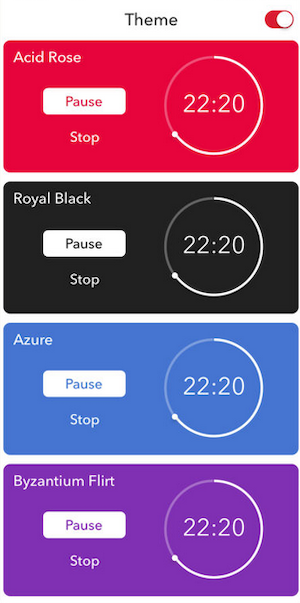
The idea behind Move On is fairly simple—the app encourages you to concentrate on one task for a certain length of time. You can set yourself goals and track your progress, fine-tune your working times and periods of rest, and get notifications when your timer starts and expires. To make your experience with the app more enjoyable, you can also select different colour schemes for the UI (we rather liked the red one).
Unsurprisingly, Move On is the No. 1 app in the Productivity Charts.
That’s all from us for today. Until next Monday!
P.S. You can find the previous issue of this newsletter here.
Subscribe for blog updates
Loading...
- Automated Claims Processing in Insurance: 2026 Complete Guide
- Ascend 2025.2: Get Ready for Clarity in Motion
- ABBYY and IBM watsonx.ai Orchestrate Transform KYC Automation at Scale
Tag a friend