
Back to ABBYY Blog
Hot Corners, Exporting Contacts, and Planning Your Workday the Smart Way
May 20, 2019

Despite our newsletter’s focus on smartphones, we don’t neglect PCs apps either. Today, we’ll talk about MacOS and Windows corner shortcuts and a nifty business calendar. We’ll also show you how to export data from BCR to Salesforce and Excel.
Mac OS Tip: Hot Corners
The Mac operating system has some very convenient features that may not be obvious at first glance —Hot Corners being one of them. There isn’t any hidden meaning to the name — it lets the user perform certain actions when pointing the cursor at a specific corner of the screen. Let’s go through the steps needed to activate this feature:
- Open System Preferences and click on Desktop & Screen Saver.
- Select the Screen Saver tab at the top.
- Click the Hot Corners button in the bottom right corner.
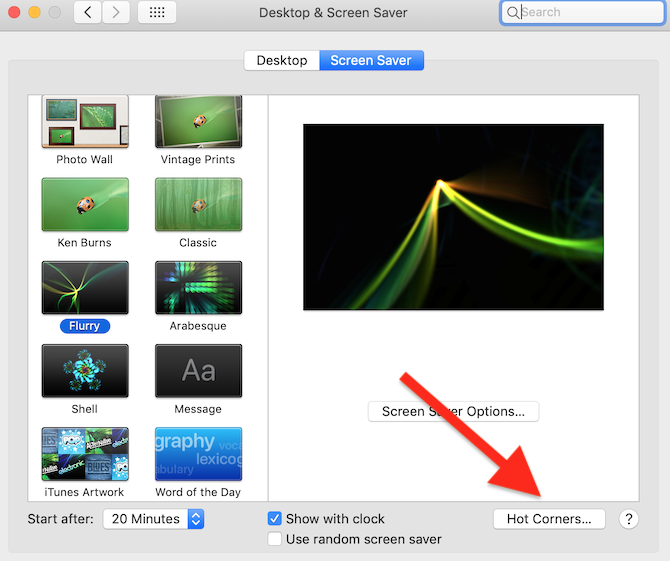
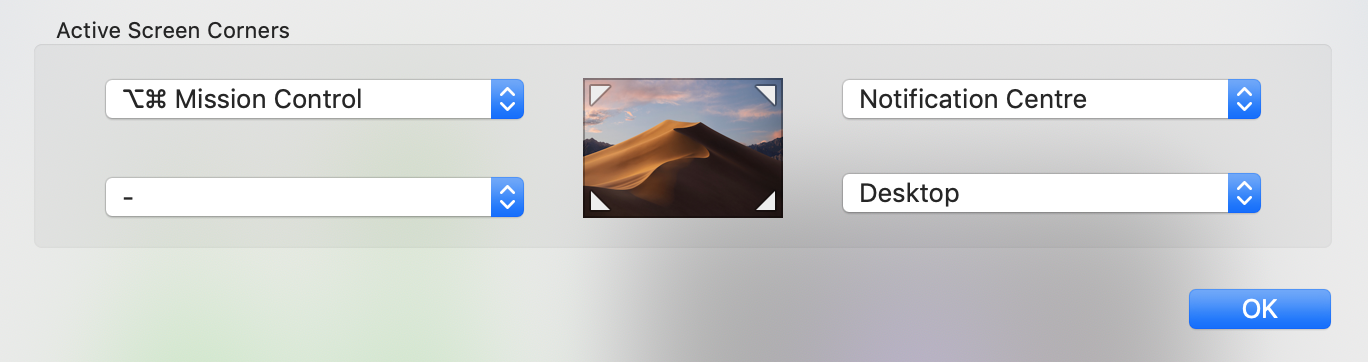
The next step is the most difficult one: choosing which shortcuts to select for each of your corners. The following is a list of the available features:
- Turn the screensaver on or off
- Mission Control (an overview window containing all other windows that are open, including the ones in full-screen and Split View modes)
- Show all running application windows
- Show the desktop
- Open the dashboard (a widget window)
- Open the Notification Center
- Open Launchpad (a window with all the programs installed on your Mac)
- Turn on Sleep mode for the monitor
- Lock the screen
We think that Desktop and Mission Control are the most useful shortcuts to have in your screen corners. The former gives you access to all files and folders on your desktop, while the latter gives you access to all running programs, which speeds up your work quite a bit.
One downside is that you may sometimes activate your shortcuts by accidentally pointing your cursor at a corner. For example, if you want to click on Trash and accidentally move your cursor to the bottom right corner, your shortcut will be activated.
However, this can be avoided by setting up your shortcuts to become clickable only when you press an additional button or a combination of buttons. You can do this by pressing and holding down one or several of the following buttons when selecting a shortcut: Command, Option, Control, or Shift. Your chosen combination will be displayed on the shortcut selection screen.
Windows Tip: Active Corners
A feature similar to the Mac OS Hot Corners was built into Windows 8 and was called “Active Corners.” Alas, Active Corners is no longer available in Windows 10 but there are several third-party programs available that allow you to assign shortcuts to the corners of your screen.
One program you may want to try as an alternative to Active Corners is called HotCornersApp. It is completely free.
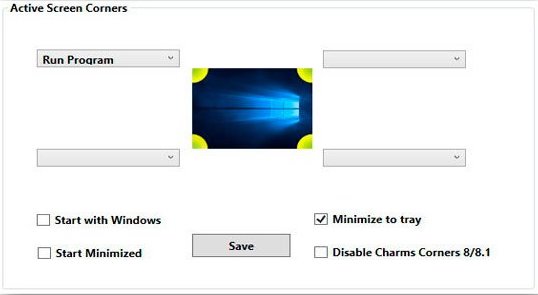
You can set up shortcuts for:
- locking your screen
- showing the desktop
- displaying all running windows
- activating a preset key combination
- launching a program
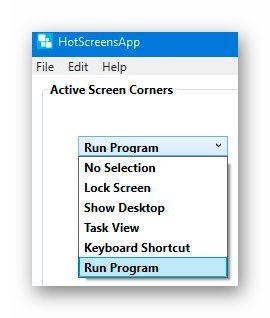
Even though there aren’t that many shortcuts to choose from, the program can still speed up your work and make it easier.
The first few shortcuts are pretty self-explanatory. Here’s how you set up the Keyboard and the Run Program shortcuts:
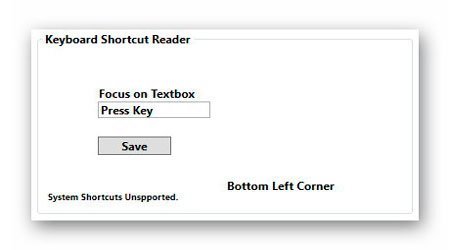
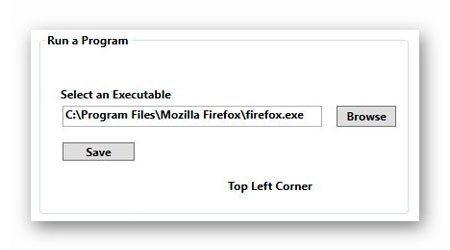
Once you’ve set everything up, the corners of your screen will turn into fully functional shortcuts.
You can download HotCornersApp for Windows here.
ABBYY Tip: Using Business Card Reader to Export Data to Salesforce and Excel
For today’s newsletter, we have prepared yet another tutorial on working with the Business Card Reader contact manager. In this earlier newsletter here, you can find a general guide to creating, editing, and managing business cards with Business Card Reader. Here’s two short videos that show you how you can export your contact list to Salesforce and Excel.
Exporting contacts to Salesforce
Exporting contacts to Excel in CSV format
Now you know everything there is to know about exporting your contacts from Business Card Reader!
You can try Business Card Reader by downloading it here.
App of the Week: Fantastical 2 for iPhone — the Calendar That Means Business
If you use several calendar apps simultaneously, Fantastical 2 can help you combine them into one. The app will collect all information about your planned events into a single calendar, notify you about conflicting events planned for the same date and time, and will also send you reminders about upcoming events. All events are color-coded, meaning you will never mistake a lunch with your friends for a business meeting in a restaurant.
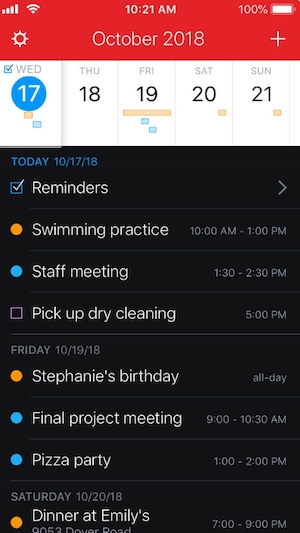
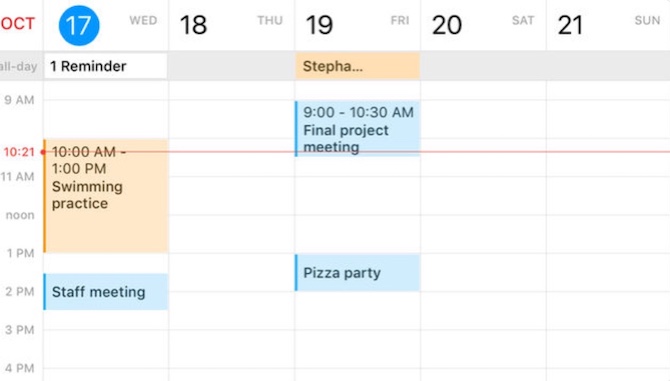
Rotating your screen 90 degrees will let you view a detailed list of your planned events. You will also be able to add, edit, and move them around.
If you travel around a lot, you can also use Fantastical 2 to calculate the shortest routes to your destinations with the help of a map.
You can download Fantastical 2 for iPhone here.
That’s all, folks! See you next time!
Subscribe for blog updates
Loading...
- Automated Claims Processing in Insurance: 2026 Complete Guide
- Ascend 2025.2: Get Ready for Clarity in Motion
- ABBYY and IBM watsonx.ai Orchestrate Transform KYC Automation at Scale
Tag a friend