Back to ABBYY Blog
Speaking Smartphones, To-Do Lists, and Calculator Tips
November 28, 2022
November 28, 2022

Editorial note: FineReader PDF Mobile for Android, Business Card Reader for Android, and Text Grabber for Android & iOS have been discontinued since September 2023. You can learn more about that here.
We all enjoy tales about the rise of the machines, but let’s face it: our smartphones are getting smarter! With this issue you will learn how to teach your smartphone to speak, export business cards, and never forget a thing.
You won’t become a proud owner of a pocket Terminator, of course, but your smartphone will be able to talk at least like a three-year-old thanks to VoiceOver, a screen-reading technology that tells you what’s happening on your iPhone. Indispensable for vision-impaired users, this feature serves as a mediator between the interface and the user, reading out loud screen elements and actions that you take within apps.
How does it work?
While performing an action, double-tap on the screen to stop or resume it. For example, you can tap twice with two fingers to end a phone call.
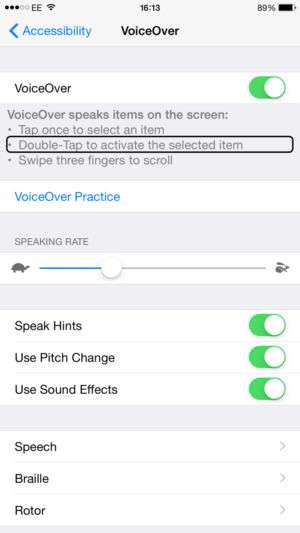
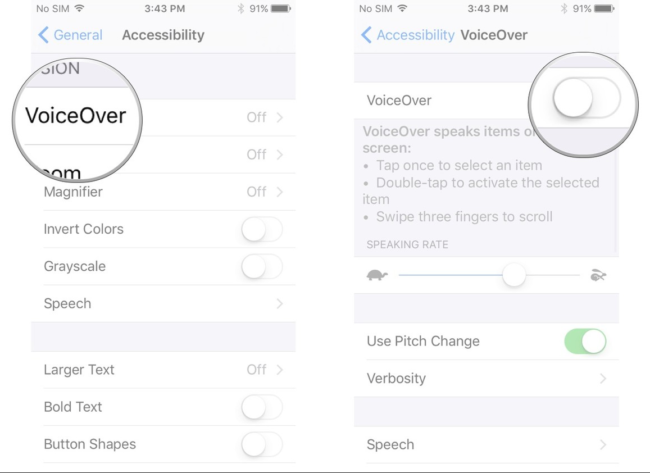
Here’s how you activate VoiceOver. Head to Settings > General > Accessibility and triple-tap the Home button to start using VoiceOver. You will hear a description of everything displayed on the screen: the battery level, the Caller ID, and even the name of the app you are about to open. You can also adjust the speaking rate and pitch.
And a couple of more perks:
Summing up: VoiceOver helps you to fully control your device without even seeing the screen. The smartphone will tell you what is happening. By the way, all ABBYY-developed apps also support VoiceOver, and TextGrabber, a must-have for vision-impaired users, is no exception.
Smartphones powered by Android are also capable of speaking to their users and guiding them while they navigate the screen.TalkBack is specifically designed as a screen reader that provides spoken feedback and announces notifications and other events.
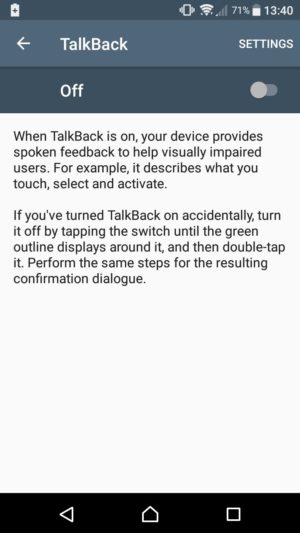
There are three ways to activate TalkBack on your phone:
You have activated TalkBack Now start swiping slowly, and TalkBack will name any icons, buttons, and other items that you touch. Once you hear the necessary item spoken to you, activate it by double-tapping anywhere on the screen.
After activating TalkBack you will be able to:
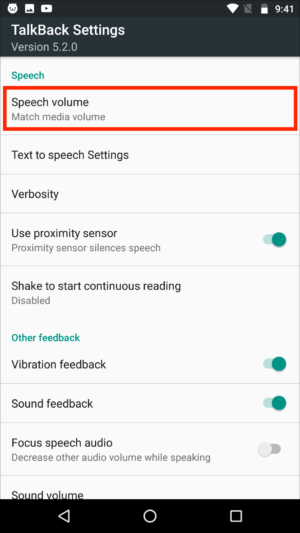
For more details on TalkBack and its capabilities, please visit this help page. ABBYY TextGrabber for both Android and iOS uses screen reading features to help vision-impaired users. You can also automatically copy the recognized text to the clipboard and listen to it in your headphones or via third-party apps.
There are two ways to export business cards from Business Card Reader — as a *.csv file or through Salesforce (currently works only on iOS). Here’s instructions for iPhone users. The most hassle-free way to do this is as follows:
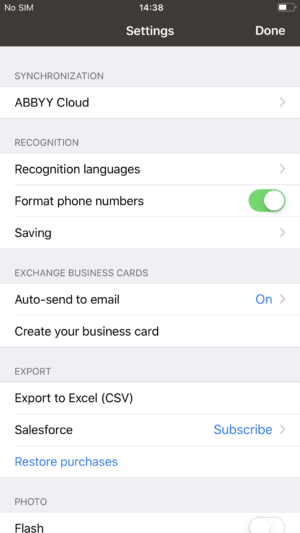
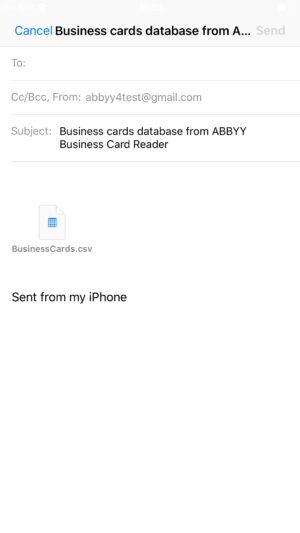
On an Android device:


To open a CSV file with the business cards in MS Excel, choose the file in File Explorer. If your system settings prevent the contents of the file from being displayed correctly, do the following:
It’s that simple!
Hourly will help you to control your time spent on every task effectively. Create a to-do list of tasks, count the time spent on each task, and track how productive your work was during the day and month.
You can use the list of your results to create reports for employers if you work at an hourly rate. Now you can measure how long different activities take, so you'll know what deadlines to set for your future tasks.
But that's not all! Hourly can also send reminders to take breaks, which is also essential. .
And finally, why Hourly?
Shared by Anton Zakharenkov, designer

Today I’m going to share with you a tip that is both hugely useful and little know to most users. It’s about correcting mistakes in the iPhone calculator. Calculator is an app no one can do without. We all have our phones in our pockets and we all need to make complicated calculations now and then.
The iPhone Calculator resembles a regular calculator, which makes using it a no-brainer. However, its physical predecessor has one limitation—if you make a typo, you’ll have to delete all the digits. How annoying is that?
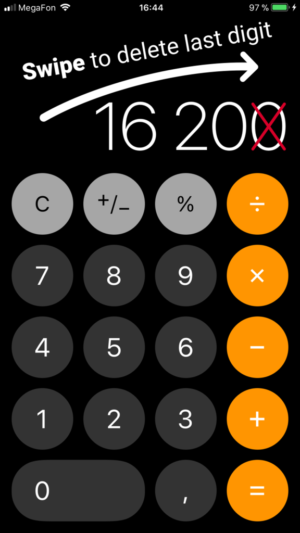
Some may think that the iOS counterpart is no different. But it is! In fact, you can edit the digits you’ve entered, even though it may not be as straightforward as you’d expect. Watch closely. Suppose you’ve performed a bunch of complicated calculations, then, to continue, you need to type, say, 16200… and make a typo. Bummer! But there is a solution. No need to start all over again. Simply swipe left to delete the last digit!
You are welcome.:)
That’s all for today, guys. As usual, the next issue of this newsletter will be out next Monday. The previous issue is available here.
