Back to ABBYY Blog
Fully Equipped for iOS 15
September 28, 2021
September 28, 2021

Editorial note: FineReader PDF Mobile for Android, Business Card Reader for Android, and Text Grabber for Android & iOS have been discontinued since September 2023. You can learn more about that here.
Apple traditionally releases a major update for iPhones and iPads annually, enabling Apple users to get access to new features. Read about the latest FineReader PDF update for iOS 15, iPadOS 15, and other improvements in ABBYY mobile apps.
The Drag and Drop feature was first made available to users as part of the iOS 11 update and only for the iPad. FineReader PDF (previously FineScanner) supports Drag and Drop on the iPad–you can learn more about it here. Now, four years later, this feature has become available for the iPhone and therefore in FineReader PDF, as well.
Easily import pictures or PDFs to FineReader PDF, for example, from the Photos or Files app, just by dragging them into FineReader PDF. Exporting documents from FineReader PDF works with Drag and Drop too.
Here are the steps for drag-and-drop activities on an iPhone:
To export a recognized file or scan, do the following:
You can also drag-and-drop scans as an image from FineReader PDF, but only if they weren’t recognized. Documents processed with optical character recognition (OCR) can be exported using Drag and Drop in the format that was chosen for recognition.
See how it works
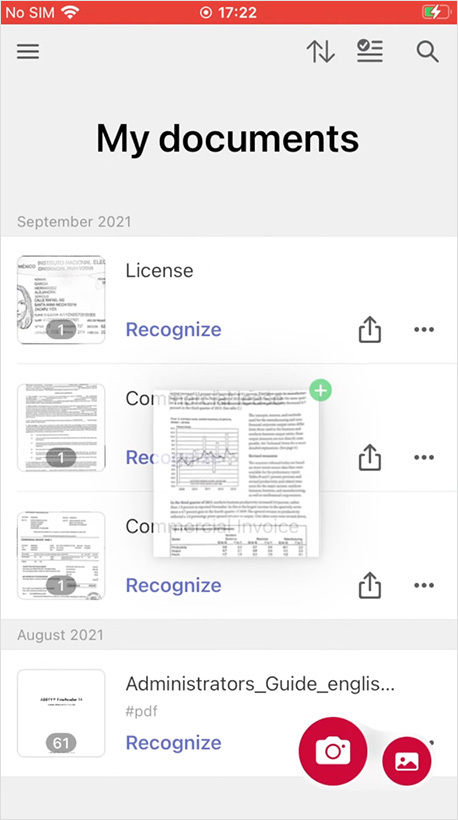
Using FineReader PDF on an iPad has become easier since we added shortcuts for an external iPad keyboard.
If you have already updated to iOS 15, update FineReader PDF as well to access the latest features. Business Card Reader and TextGrabber are ready for iOS 15, working stably and smoothly.
We are looking forward to your feedback on the App Store page.
One of the most frequently requested features is finally available in FineReader PDF for iOS and Android. Now you can share several documents at once. Just select all you need. Bulk delete is also available.
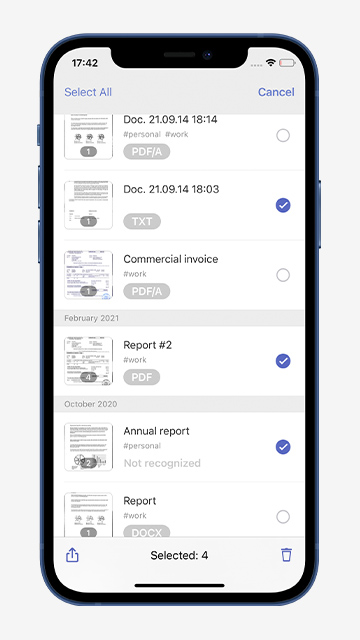
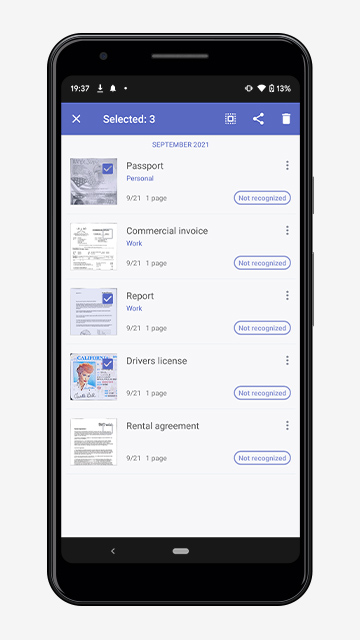
Sort documents in FineReader PDF for iOS by name or by date on My documents screen.
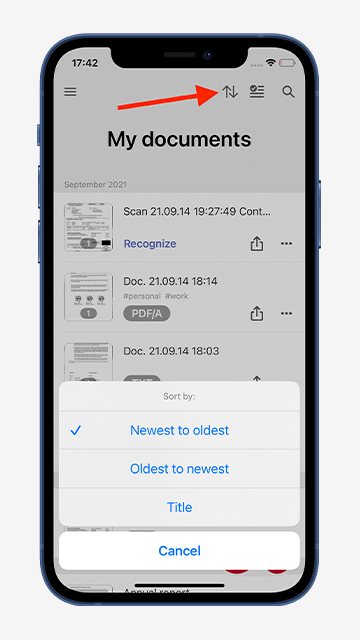
Tap the button with arrows in the upper right corner and choose the option you prefer.
Make your FineReader PDF even more personal. Create a custom name template for new documents. To set this up:
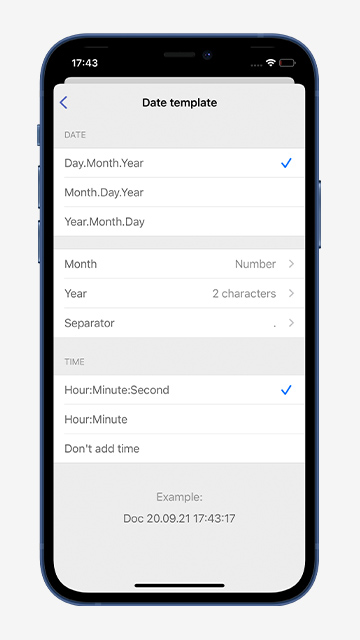
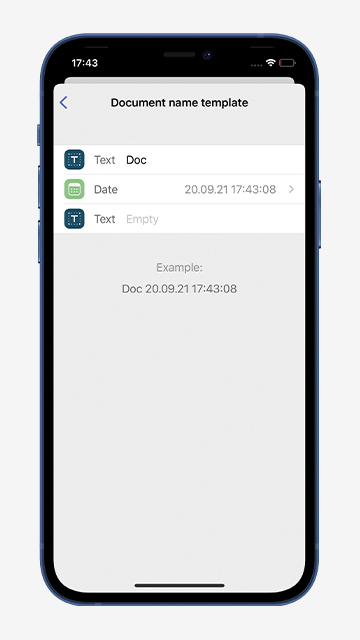
The new template will apply to newly created scans.
You’re one step closer to creating perfect scans of photos from your gallery. We added an additional button to My documents screen in FineReader PDF for iOS and Android. You can now access the gallery with a single tap.
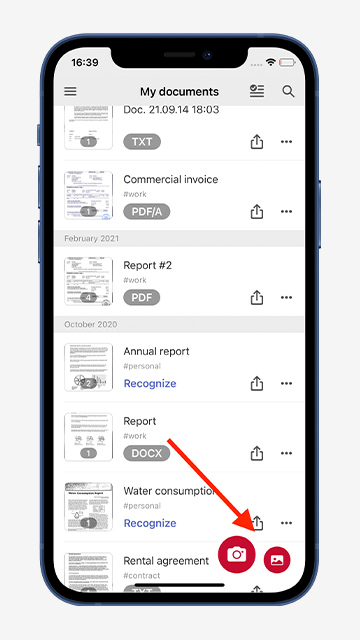
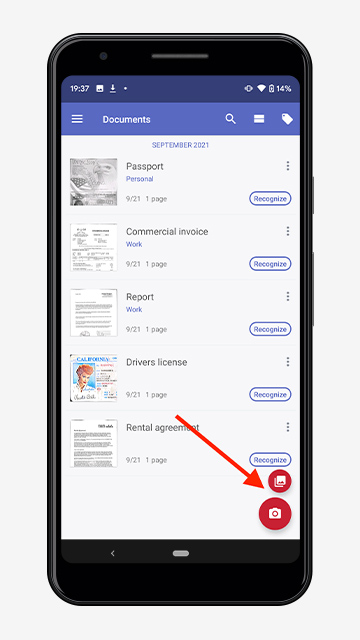
To try all our latest features and updates, download iOS 15 / iPadOS 15, update FineReader PDF, Business Card Reader and TextGrabber, and get the most out of ABBYY Mobile Apps.
