Back to ABBYY Blog
Things in Order, Cancelling Subscriptions, and Spotting Typos
October 10, 2017
October 10, 2017
Another week has flown by and now it’s time for next how-to: allocate apps in folders, manage subscriptions, and documents on mobile devices. Yes, you have guessed correctly: this week’s newsletter is about keeping things organized, secure, and readily accessible.
We were not a little surprised to discover that lots of smartphone and tablet users don’t know how to create folders where they can store their apps. As a result, they have hundreds of apps scattered over dozens of screens without any order or method. Imagine having your T-shirts, jeans, and hoodies strewn all over the room instead of being neatly folded and placed on their appropriate shelves in the closet.
We find this completely unacceptable and, to remedy the lamentable state of affairs, begin a series of newsletters highlighting some useful iOS features that may have escaped your attention until now. So, how do you actually create folders in iOS and use them for organizing stuff? It takes just two taps (plus an extra tap for each added app):
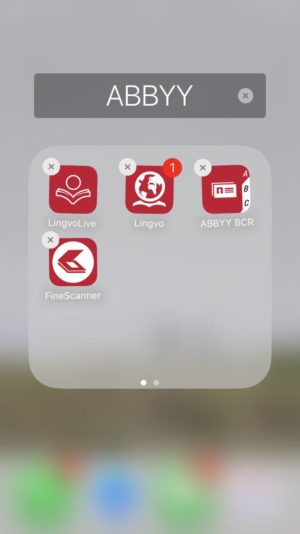
Putting all your messengers into a folder doesn’t mean that you won’t be able to see their push notifications. The folder will still show a notification badge if any of the apps inside it receive a message. Here’s how it will look like:

One more tip: you can also rename a folder with 3D Touch. Simply press on the folder and choose Select from the menu that pops up.
Same instructions as before:
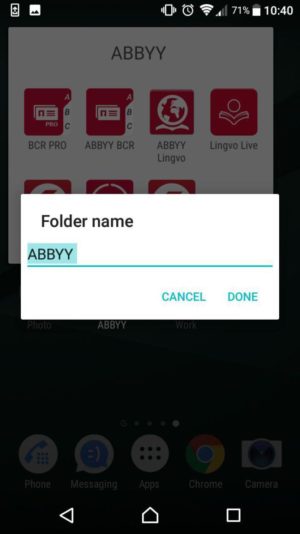
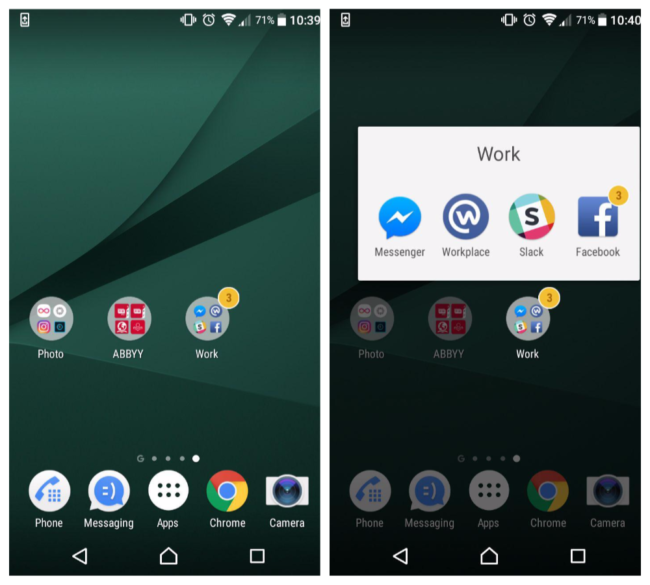
Just like in iOS, an Android folder will display a notification badge if any app inside it receives a message.
A user may be unwilling to activate an app subscription because it may not be immediately clear how it can be cancelled. Our apps Business Card Reader and FineScanner use this type of monetization, that is why we made easy-to-follow step-by-step guide to cancelling a subscription.
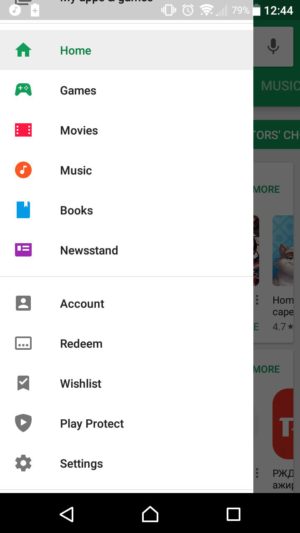
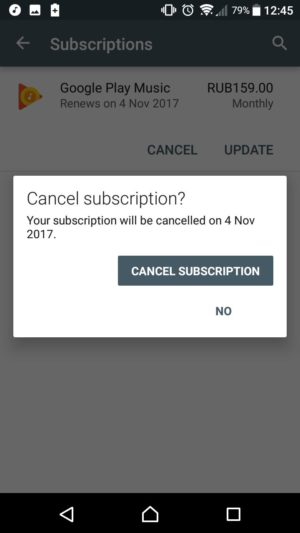
There are two ways to cancel a renewable/recurring subscription—using your smartphone or your Mac/PC computer. First, here’s how you cancel a subscription on an Android smartphone or tablet:
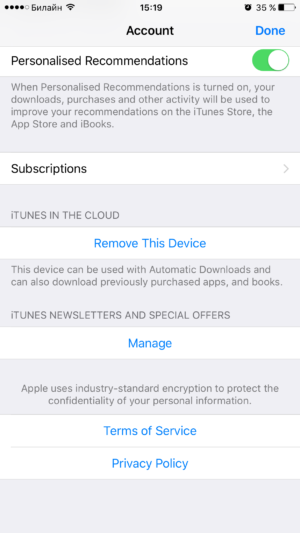
And here’s how you unsubscribe using an iOS device:
If you need more detailed instructions, please see this page.
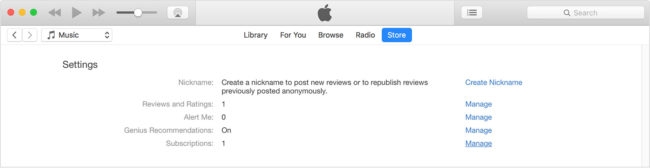
Cancelling your subscriptions via your Mac or PC
For Android subscriptions:
If you need more detailed instructions, please see this page.
For iOS subscriptions:
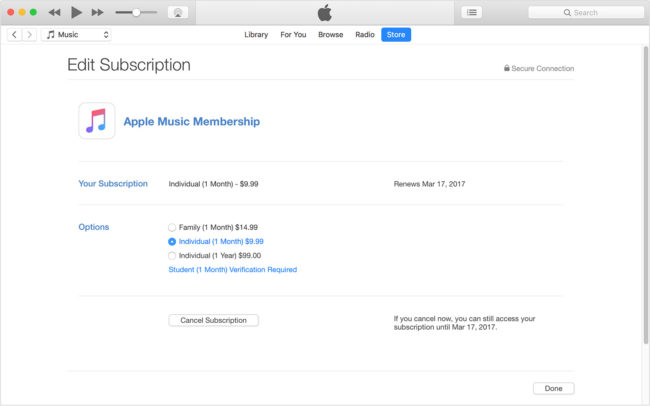
If you need more detailed instructions, please see this page.
IMPORTANT! Simply removing an app from your device won’t automatically cancel your subscription to this app. You must explicitly cancel your subscription in your account. Otherwise, you will still get charged for the uninstalled app without being able to use it. That’s just the way Google Play and App Store work.
Clean Master is an app that frees up space on your smartphone by removing apps and data you no longer need. You can clear the app cache, remove apps, and delete the search history. Additionally, you can stop running tasks, free up RAM to speed up your phone, and extend your battery life without obtaining the superuser rights.
The app includes a task manager to kill unwanted background processes that are slowing down your device. Another useful tool provided by the app is the Junk Cleaner, which removes residual files left behind by uninstalled apps.
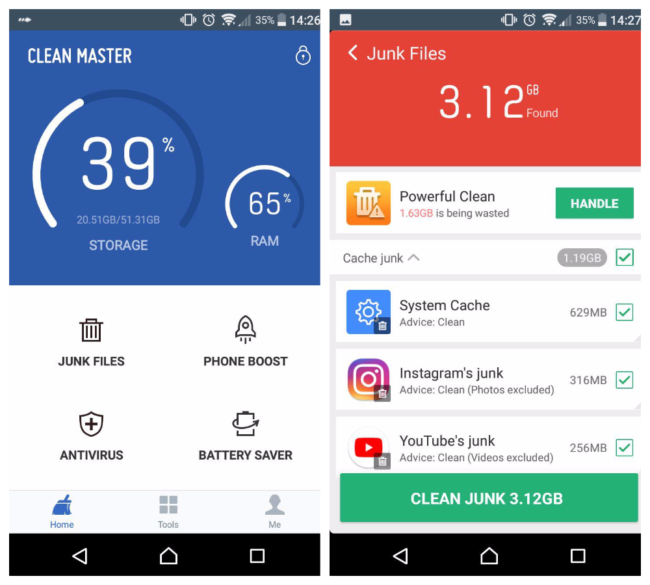
Clean Master is only available for Android, but here’s an excellent counterpart for iOS.
Shared by Mikhail Shubin, Head of Marketing and Sales

Imagine: you have painstakingly created a leaflet in a publishing application, double-checked everything, and sent it off to the printers, who will print 100,000 copies for you. Then you suddenly realize there is a typo in the title…
Ever found yourself in that situation?
One of the reasons typos are so easily overlooked is that our brain tends to fill in any missing gaps in the information it receives from the eyes. For example, if there is a letter missing in a word, your brain will simply fill it in so that the entire sentence makes sense and everything will seem fine (until you’ve clicked Send, of course).
The problem can be solved by considering each word in isolation, then your mind will have much less context to rely on. This can be achieved by simply reading your text backwards, so that words won’t combine into thoughts. That way typos will become much easier to spot.
Here’s another trick you can use. Change the formatting of the text (e.g. centre it) and print it out. The new format and the fact that you are reading a printed page will put your brain in gear, making it more alert and sensitive to typos. But you will still need to read the text backwards, and, perhaps, ask a colleague to do the same before giving the go-ahead for the presses to roll.
That’s all for today, guys! See you next Monday! You can find the previous issue of the newsletter here.
