Back to ABBYY Blog
Wireless Headphones, Outlook Synchronization, and Password Safety
November 21, 2022

In today’s edition, we’ll propel you and your new headphones into the wireless era with a Bluetooth setup guide. We’ll also offer a brief tutorial on synchronizing BCR with Outlook and tell you about keeping your data safe online.
iOS Tip: Setting Up Your Bluetooth Headphones
As a first step, be sure to read the instruction manual that comes with your headphones. There you will find information about how to charge your headphones and connect them to your device. Usually, you will be required to long-press a special “connect” button.
Now, set up the connection on your smartphone.
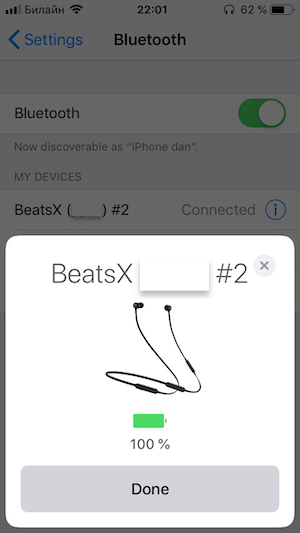
Open Settings→ Bluetooth and enable Bluetooth by toggling the appropriate switch.
If “Allow New Connections” button appears, tap it to accept the new connection. After that, follow the instructions in the user’s manual. For example, the Beats headphones require you to hold down the “connect” button for a few seconds.
If everything is done correctly, the headphones will appear in the Bluetooth menu. Tap them — you will most likely hear an audio signal confirming a successful connection. If you are setting up Apple headphones (AirPods or Beats), you will see a special notification on the screen, confirming that you have successfully paired them up with your phone.
Android Tip: Setting Up Your Bluetooth Headphones
Nothing too tricky about this either — for once the instructions are almost identical for all brands of smartphones and for all Android versions.
Press the “connect” button on your headphones to make them discoverable. Then, in your phone’s Settings find the Bluetooth section. Open it and switch your Bluetooth on. If your headphones have been set up correctly, you will see them displayed in the Available Devices section — tap them and enjoy your music without the annoying wires.
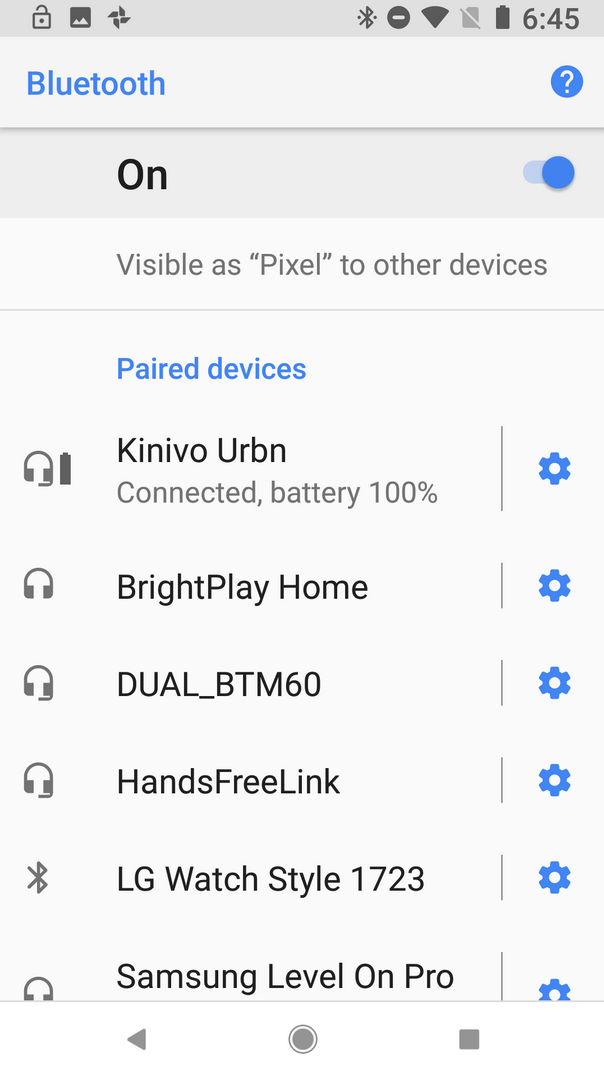
In the status bar, an icon will appear notifying you about your headphones’ connection status.
ABBYY Tip: Synchronizing Business Card Reader and Outlook
We hope you’re ready for yet another Business Card Reader tutorial. Today’s video will be of most help to BCR and Outlook users, because now the two apps can communicate and exchange data. To find out more and improve your contact management skills, watch this week’s video.
App of the Week: Kaspersky Password Manager
In this internet age, many of the aspects of our daily lives have been transferred online. We have to protect our data and most often this is done by using passwords. Unfortunately, scammers and hackers are always out to get you. Stories about hacked accounts appear regularly in the media. Most recently, there was the Facebook data leak and the Collection #1 leak.

Kaspersky Password Manager will help keep your data safe. The app has a wide range of password management tools. It will fill in your passwords for you, generate new passwords, check your passwords for uniqueness, and check if any of your passwords has featured in the popular databases of leaked passwords.

You can also use Kaspersky Password Manager to encrypt your most valuable data —bank card details, your account names and passwords, images of your documents, and PDF files. For example, you can securely store photographs of your family’s passports that you need to book a flight.

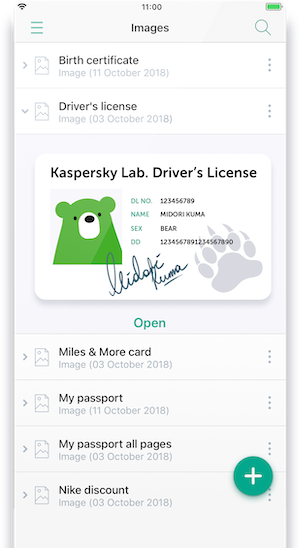
The app lets you safely store your most important data in one place and always have it handy at the same time.
Kaspersky Password Manager is available for iOS, Android, Mac, Windows, and also online. All entries are synchronized across all your devices. This means that you will keep all your data even if, for some reason, you no longer have access to your phone.
Download Kaspersky Password Manager for iOS.
Download Kaspersky Password Manager for Android.
