
Back to ABBYY Blog
Automate FineReader PDF (ex. FineScanner) Workflow with iOS 13 and Shortcuts
September 18, 2019

Apple’s new iOS is finally here — this time it’s number 13, with lots of improvements, including a beefed-up version of Siri Shortcuts. In our iOS 13 FineReader PDF update, we’ve improved user experience with Siri Shortcuts and added some automation scenarios.
Support for Siri Shortcuts in FineReader PDF
The Siri Shortcuts app, which was previously called Workflow, first appeared in iOS 12, prompting us to add document voice shortcuts to FineReader PDF. With the release of iOS 13, the Siri Shortcuts app has become a built-in feature and can now do so much more. We decided to take the bull by the horns by adding automation shortcuts to FineReader PDF. Now you will be able to control the app by talking to Siri! The following two most popular scenarios have been automated in FineReader PDF:
Get PDF
Use this shortcut to open PDF documents by talking to the app. You can also specify an additional action to be performed when the document is opened. For example, you can send your PDF document via email, iMessage, or open the Share menu.
Now you can access your documents comfortably even when you are driving. All you have to do is say the name of a file and ask Siri to open it. Within seconds, a PDF file containing the scan of your document will be ready to be sent via email. You will only need to provide the recipient’s address. This means that now you can email PDF scans with just two taps — without even opening FineReader PDF.
Get Recognized Document
Use the Get Recognized Document shortcut to share captured texts. For example, you can scan a draft contract, recognize the text online or offline, and forward it to your business partners. They will receive the editable copy via email, WhatsApp, or any other similar application of your choice.
How do I set up Shortcuts?
- Install Siri Shortcuts (if it wasn't installed previously) and run it.
- Tap My Shortcuts tab and then tap the + icon in the upper right corner.
- Tap Add Action, type “FineReader PDF” in the search bar, and select the FineReader PDF app.
- In the dialog box that opens, select the shortcut you need.
Now you have to add a second action to the algorithm — it will be performed after the first command. Let’s assume you want to send your documents via email. Then:
- Choose the Send Email. The result should look something like this:
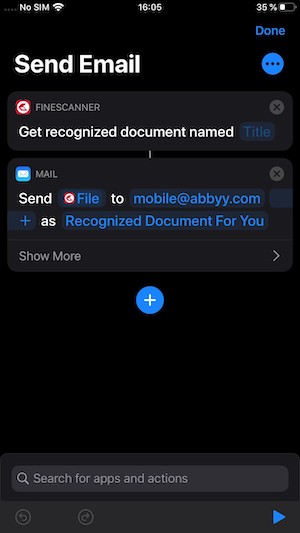
- Tap the + icon under the FineReader PDF shortcut and type “email” in the search bar. You can also search for any other mailing client or messaging app that you use.
- Now, the most important part. Tap the three-dot menu icon that can be found under the Done button — this will open a menu where you can configure the shortcut. In the Shortcut Name field, type any phrase that you want to use as a voice command for Siri.
- Tap Done and then Done again.
Now all you need to do is say “Hey Siri” followed by the phrase you specified in Shortcut Name. Siri will ask you for the name of the document, and the only thing left for you to do will be to type an email address.
Siri Suggestions
As an icing on the cake, Siri Suggestions. Now Siri can remember what you use FineReader PDF for most often and provide a one-tap shortcut for that action or set of actions. You can find Siri Suggestions by tapping the Spotlight search bar. A Siri suggestion can also appear even when the screen is locked if Siri thinks that you want that particular action performed.
Siri can do the following for you:
- Scan a document
- Open a document
- Open a book
The more often you use FineReader PDF, the more precise Siri’s suggestions become 😉.
The new version of FineReader PDF, among other things, now also supports VoiceOver. This technology reads out loud on-screen events, interface elements, and recognized texts so that people with visual impairments can easily use FineReader PDF to scan and recognize documents.
Download or update your FineReader PDF app to make working with documents even faster and more efficient. Because it took us so much work to get here, we eagerly await your comments and suggestions on the app’s page in the App Store.
Other functions that we’ve implemented for iOS 13 include the integration of Siri Shortcuts into Business Card Reader. For more details, click here.
P.S. To read about the useful features that we added to FineReader PDF (ex. FineScanner) for iOS in the past, click on the following links: iOS 12 in 2018, iOS 11 in 2017, and iOS 10 in 2016.
Subscribe for blog updates
Loading...
- Automated Claims Processing in Insurance: 2026 Complete Guide
- Ascend 2025.2: Get Ready for Clarity in Motion
- ABBYY and IBM watsonx.ai Orchestrate Transform KYC Automation at Scale
Tag a friend