Back to ABBYY Blog
Automation, TextGrabber Shortcuts, and a Calculator
April 22, 2019
April 22, 2019
Editorial note: FineReader PDF Mobile for Android, Business Card Reader for Android, and Text Grabber for Android & iOS have been discontinued since September 2023. You can learn more about that here.
Thanks to automation, my computer can almost write newsletters on its own (joking). Today, we’ll talk about two automation apps — Shortcuts for iPhone and Tasker for Android. Also, we’ll show you some automation tricks in TextGrabber and a cool calculator.
Apple implemented a cool new feature in iOS 12 — you can now use specialized commands to automate a lot of things on your iPhone. Now, instead of tapping the screen multiple times, you can just tap a command in the Shortcuts app once. By the way, Shortcuts used to be called Workflow before it was bought and rebranded by Apple.
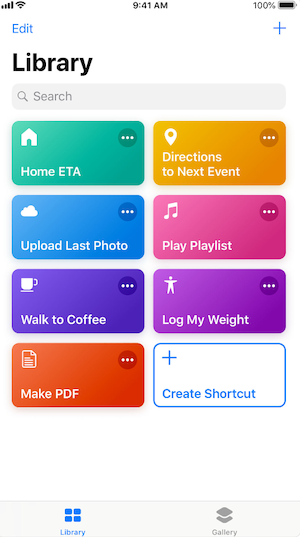
Let’s start by downloading the Shortcuts app itself. We recommend that you try out the following commands:
Switching off Wi-Fi, Bluetooth, and mobile data
Remember an update in iOS 11 that made you open the Settings app if you wanted to completely switch off your Wi-Fi, Bluetooth or mobile data? And if you switched any of those in the control panel, they would be automatically flicked back on after a while.
Now, you can easily switch them on and off with the help of a voice-activated Shortcut or by using the Shortcut widget.
Here’re the links where you can download the necessary Shortcuts:
Converting videos to GIFs
GIF images are commonplace, but it is still a challenge to create one using your iPhone. This Shortcut should solve the problem. When you launch it, it takes you to your video gallery, where you can then cut out a sequence from a video and convert to it into a GIF.
You can download the Shortcut here.
Time Machine
This is an app for those who like nostalgia. It lets you view photos in your gallery that were taken more than a year ago. This is the default setting but you can specify any other length of time, even in seconds. Warning: can be addictive! 🙂
You can download Time Machine here.
Downloading Instagram photos with InstaSave
Finally you can save Instagram photos without having to screenshot them! To do this, just copy the link of a photo you like and launch this shortcut. Before you know it, the image will already be in your gallery.
You can download the Shortcut here.
Convert slow-motion iPhone videos
You might have noticed that slow-motion videos that were taken with an iPhone will only work on other iPhones. If you were to try and send such a video via WhatsApp, for example, it would lose its slow-motion effect. 🙁 To avoid that, you can use this Convert Slo-mo shortcut. After installing it, choose a video, select Share, and tap Shortcuts. Done!
You can download the Shortcut here.
Downloading files
Downloading files in iOS is no easy task. With the help of this particular shortcut, you can share a link to a file using the Shortcuts app. Then, the app will download the file and ask you where you want it saved.
You can download the shortcut here.
The Shortcuts app has its own handy widget that can show you the commands you have used recently. This way, you can quickly access any of your favourite shortcuts.
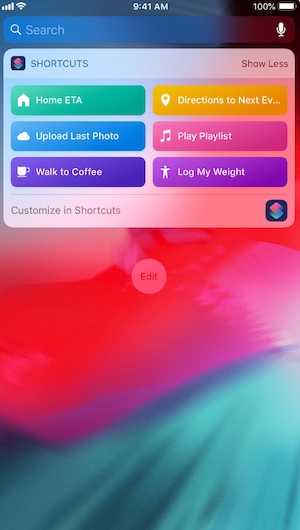
Now you have a general idea of what you can do with the Shortcuts app. The list of possibilities is endless! You may also want to have a look in the Gallery section of the app, where you will find a large collection of shortcuts for any occasion.
Tasker is an app that lets you automate almost everything on your Android smartphone. The only downside is that you might have to spend a significant amount of time studying the various guides and manuals. As soon as you install the app, you will have access to 200 preinstalled profiles (i.e. commands). If you need more, try consulting something like this video tutorial.
Below is a list of some of the things Tasker lets you do:
Launch your music player when you plug in your headphones
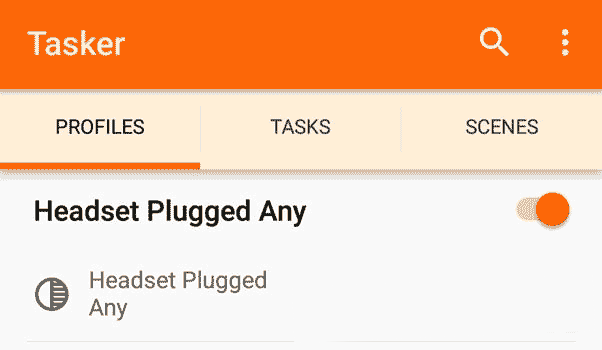
Silencing incoming calls when the screen is face down
This Tasker profile allows the phone to automatically switch to silent mode when it is lying face-down on a surface. This is ideal for something like lectures and business meetings.
Enabling auto-rotate for selected applications
Push notifications for low battery
With Tasker, you can automate anything — but you’ll have to spend some time first to explore the numerous options offered by the app.
We have discovered a user-created iPhone Shortcut that uses TextGrabber — the only OCR app supported by Shortcuts. One scenario involves searching for food ingredients that the Shortcut creator is allergic to. When the app is launched, it opens the camera. The user then takes a photo of the ingredients, which is automatically recognized by TextGrabber. If any dangerous ingredients are discovered, the Shortcut will show a warning. The Shortcut is called “Allergy Alert” and you can download it for your iPhone here.
MyScript Calculator is more than just a calculator. If you need to add two numbers together, trace them on the screen using your finger, and the app will recognize the numbers and add them up. It also supports percentages, powers, roots, trig formulas, and logs.
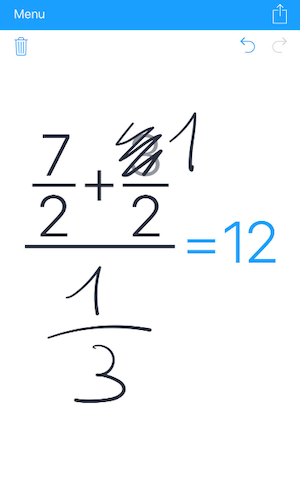
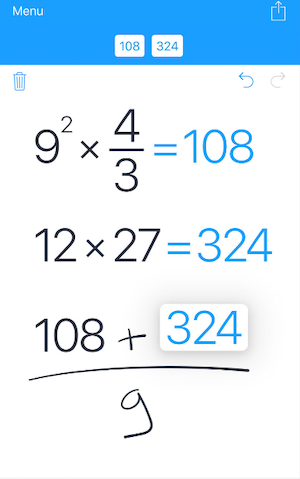
MyScript Calculator will accurately compute almost any mathematical expression.
You will find the app particularly helpful if you are used to doing calculations by hand but don’t have pen and paper handy 🙂
The calculator also remembers what you’ve calculated — check the History section to see your previous calculations.
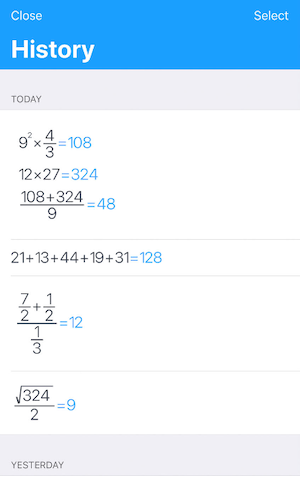
You can download MyScript Calculator for iOS here and for Android here.
That’s all, folks! See you next time!
P.S. You can find the previous issue of this newsletter here.
